 BigCommerce
Synchronize Locations
Locations can only be created in BigCommerce. After creating the locations, you can import them into Business Central. The locations are needed to manage the inventory of the products per location.
To synchronize locations from BigCommerce
- Select Search (Alt + Q)
 in the upper-right corner, enter XPR365 BigCommerce Stores, and then choose the related link.
 - Open the store you want import locations for.
- Choose the Locations action.
- On the XPR365 BigCommerce Locations page, choose the Import action.
All available locations will be imported.
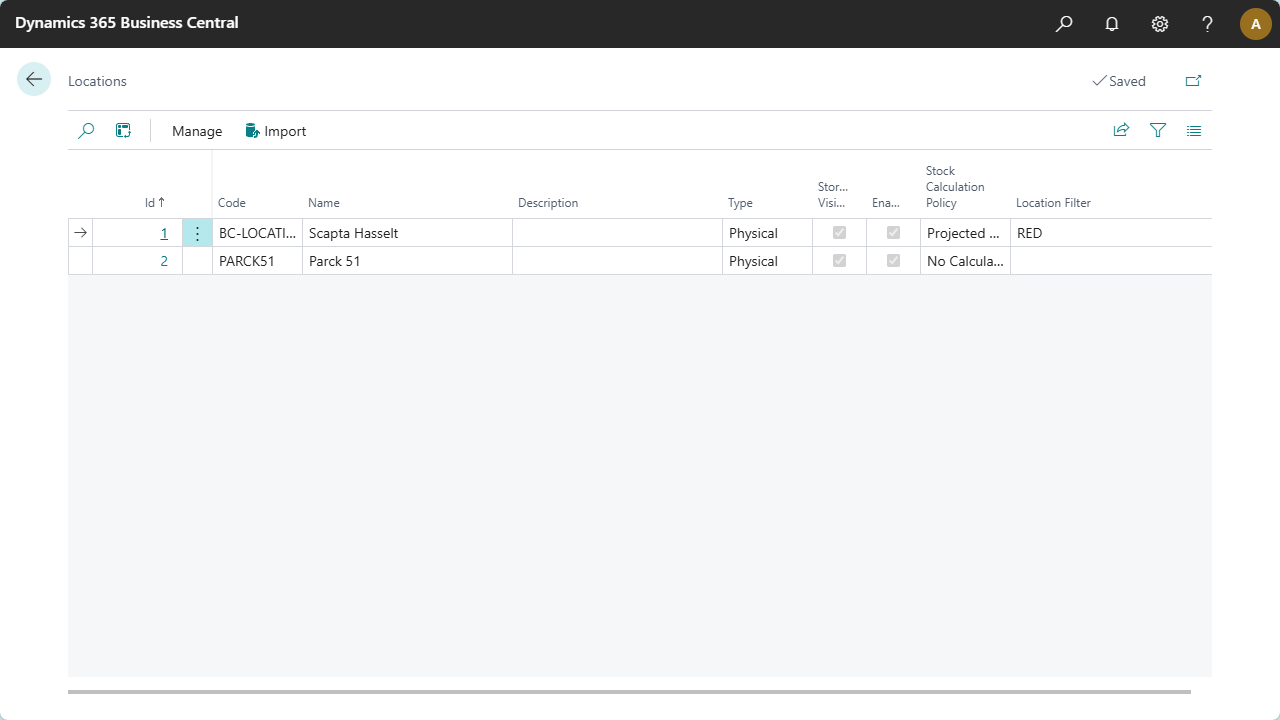
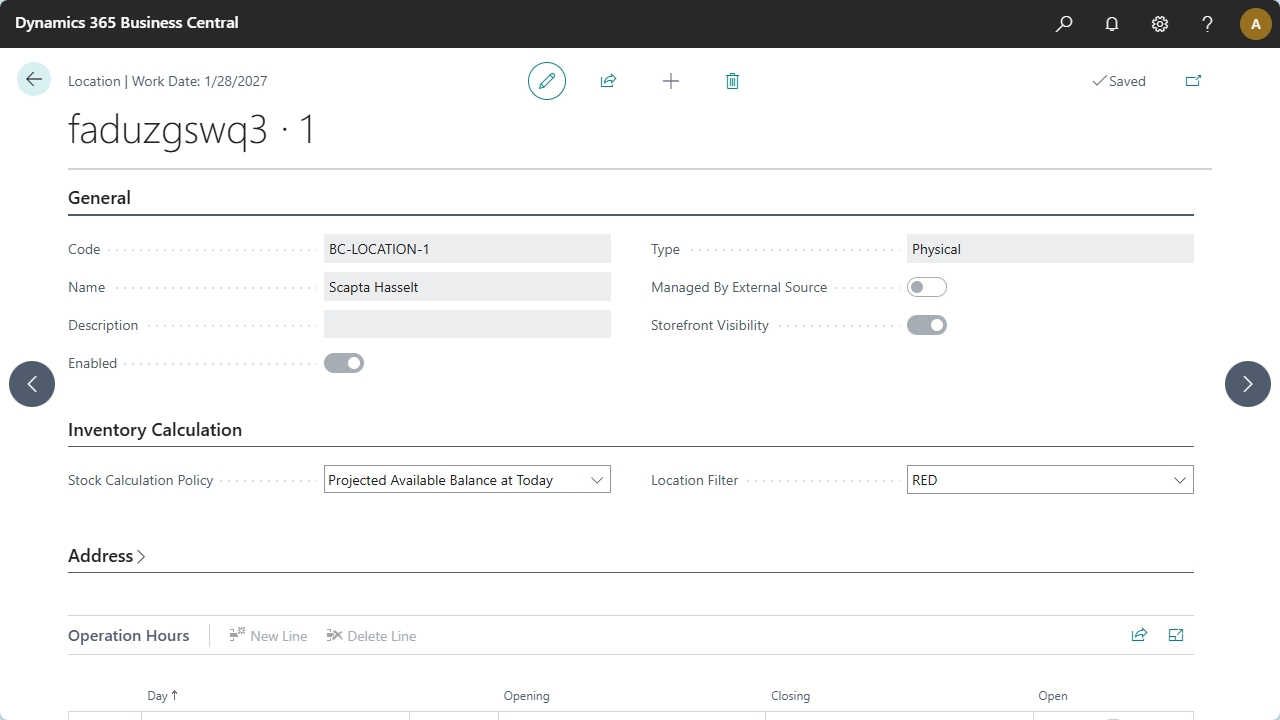
- To change the inventory calculation, open the location card by clicking on the location id.
This will open the location card page. Here can modify the fields:
- Stock Calculation Policy: This will tell the system how the inventory must be calculated
- Location filter: With this you can filter on the Business Central location for narrow the calculated inventory.