 Billit
Use e-documents in the purchase process
You can use configured electronic documents (e-documents) with the following purchase documents:
- Purchase invoices
- Purchase credit memos
E-documents in purchases
You can receive purchase e-documents manually, or by using the Receive batch job.
- Choose the
 icon, enter E-Document Service, and then choose the related link.
 - On the E-Document Service page, select the active service.
- To receive all document in a queue from your external service, select Receive.
For more information, see Use e-documents in the purchase process.
Work with purchase invoices
If your Vendor configured the Received E-Document To field to work with Purchase Invoices, once an electronic document is created in Business Central (manually or from external end point), follow these steps:
- Choose the icon, enter E-Documents, and then choose the related link.
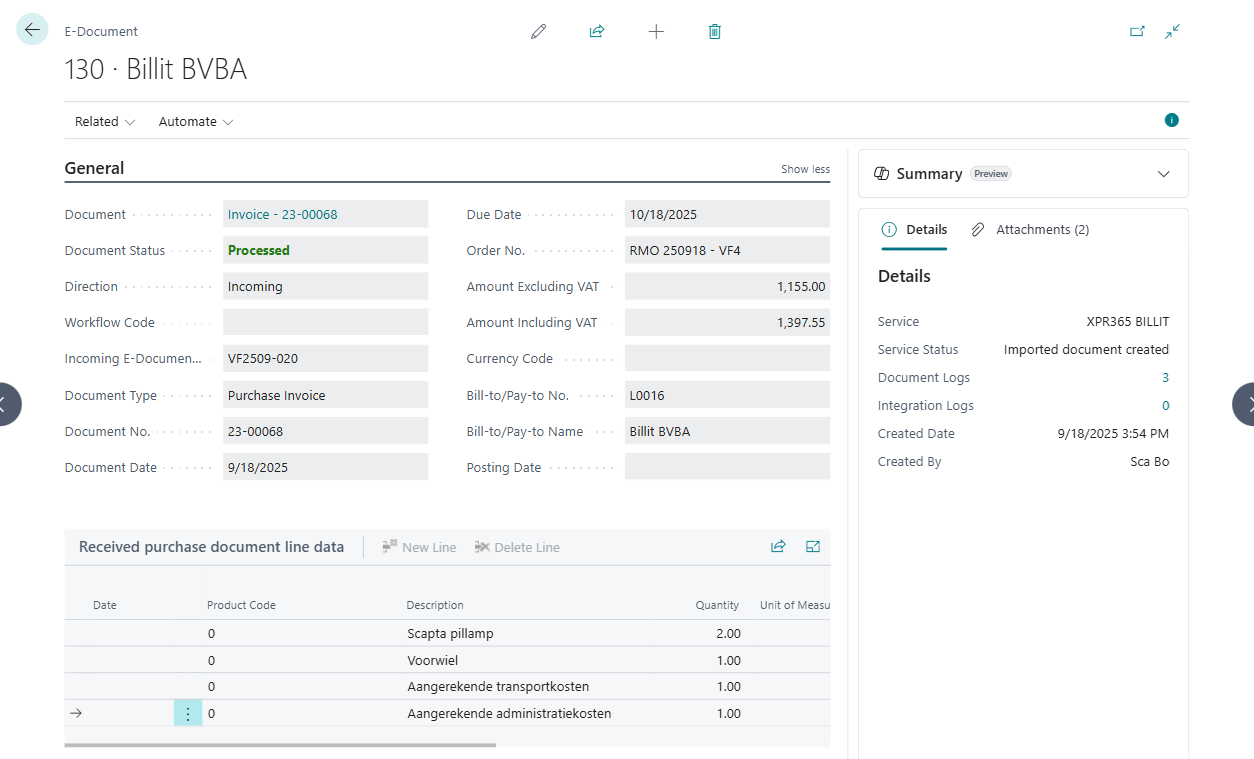
- Open the specific document to view the details.
- Choose the Reprocess Document action to process the document. If there are no errors or issues in the e-document a purchase invoice is created.
If the incoming document contains errors, handle the errors. Learn more at Handle errors and warnings. - Select the Document field to go directly to the purchase document. After you open the Purchase Invoice page, review the document. If everything is correct, post the document.
- When you post the purchase document, the Document field on the E-Document updates from Invoice to Purchase Invoice, and the number of the posted purchase document is available. You can select the number to open it.
For more information, see Work with purchase invoices.
Work with purchase orders
If your Vendor configured the Received E-Document To field to work with Purchase Orders, once an electronic document is created in Business Central (manually or from external end point), follow these steps:
- Choose the icon, enter E-Documents, and then choose the related link.
- Open the specific document to view the details.
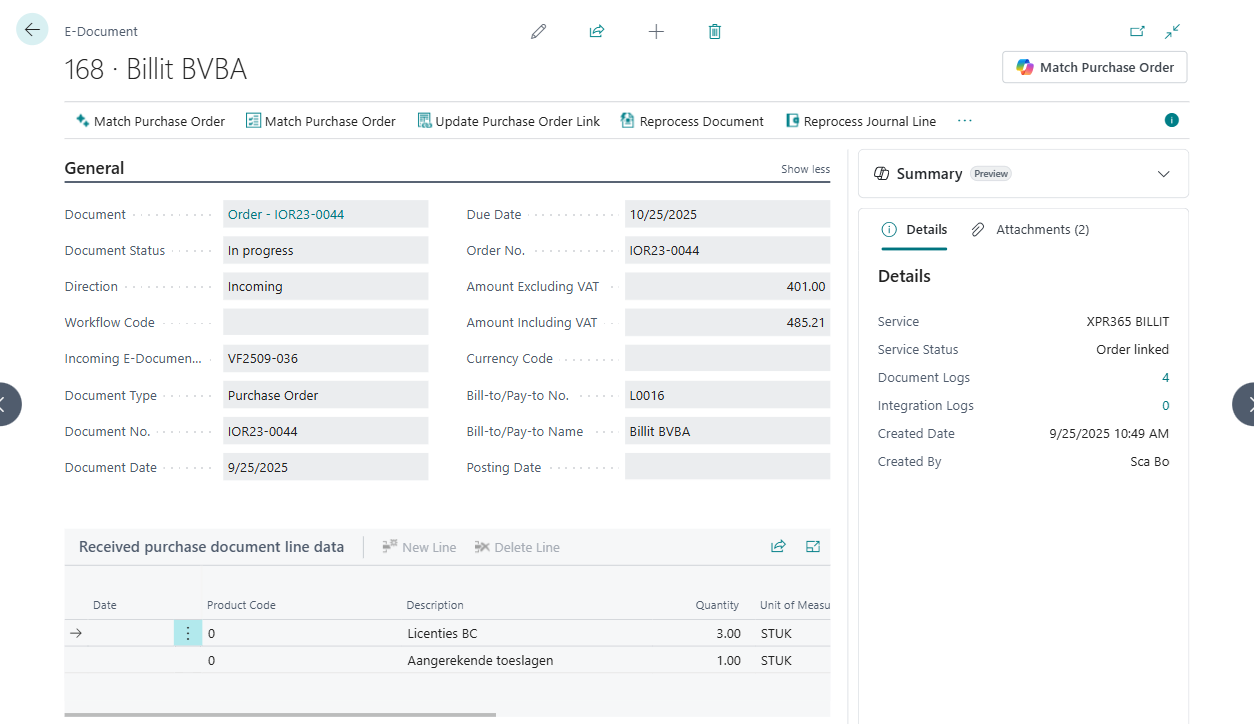
Choose the Reprocess Document action to process the document.
- If the Purchase Order for this particular vendor exists and the purchase order number is in the Order No. field, Business Central automatically links this E-Document with the mentioned Purchase Order.
- If the Purchase Order for this particular vendor exists but there's no purchase order number in the Order No., Business Central offers the possibility to choose one of the existing purchase orders.
- If the Purchase Order for this particular vendor doesn't exist when a new E-Document is created, Business Central creates a new Purchase Order.
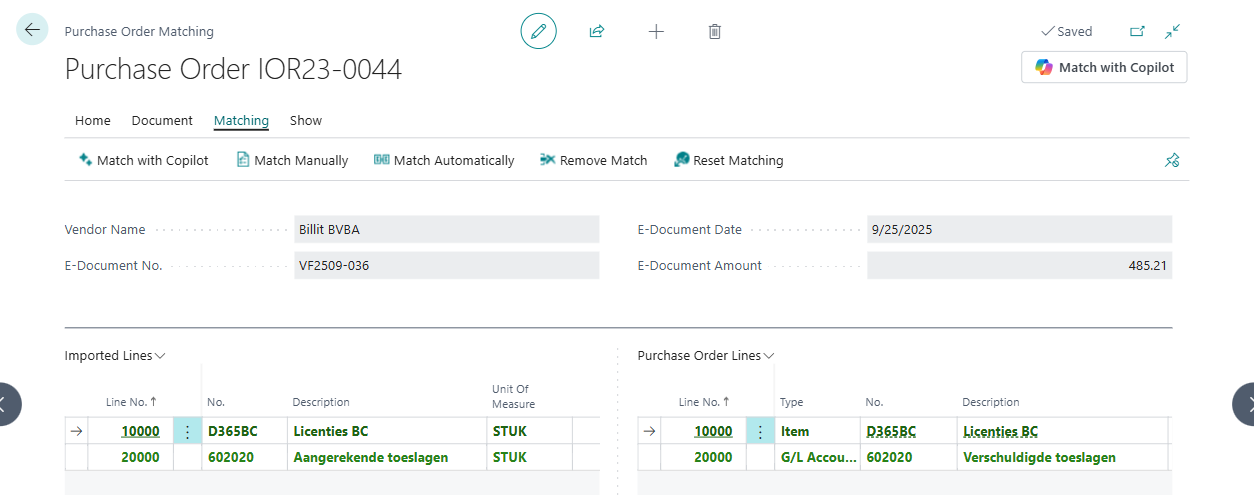
Match the lines from the received e-document with the purchase order. Learn more at, Match lines from received e-document with purchase order.
After you finish the matching, select the Apply to Purchase Order action.
- The Vendor Invoice No. and Document Date fields on the document header update with values from the electronic document that you received and linked.
- The Qty. to Invoice field on the lines update with the values from the Qty. to Invoice column from the Purchase Order Matching page based on the match.
When you post the purchase document, the Document field on the E-Document updates from Order to Purchase Invoice, and the number of the posted purchase document is available. You can select the number to open it.
For more information, see E-documents with purchase orders.