 Shopify Custom Connector
Set up Shopify Custom Apps
After you have created a custom app in Shopify, you register it on the shop in Business Central. Business Central then connects to Shopify and gets an access token for the app.
Permissions
To set up custom apps, you need the Shopify Connection Admin permission set. Users with the Shpfy - Admin permission set of the Shopify Connector automatically have this permission.
To set up a custom app
- Select Search ( Alt + Q )
 in the upper-right corner, enter Shopify Shops, and then choose the related link.
- Open the shop you want to connect.
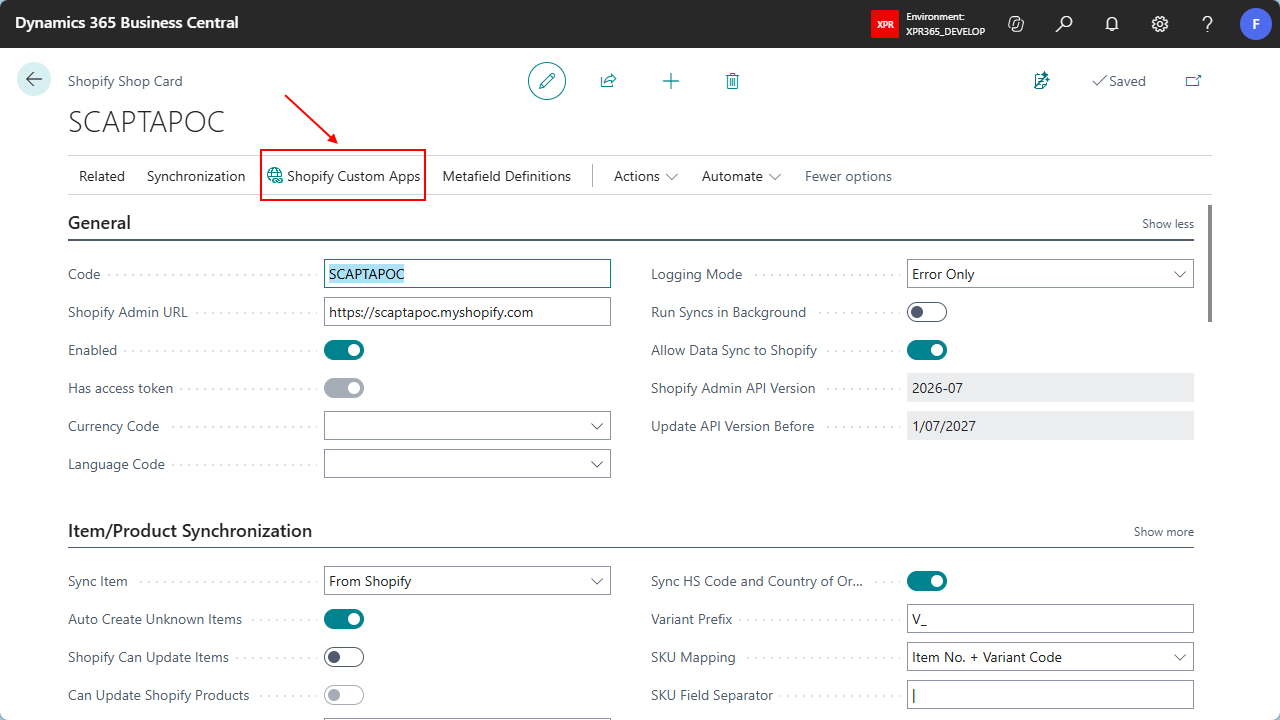
On the Shopify Shop Card, choose the Shopify Custom Apps action.
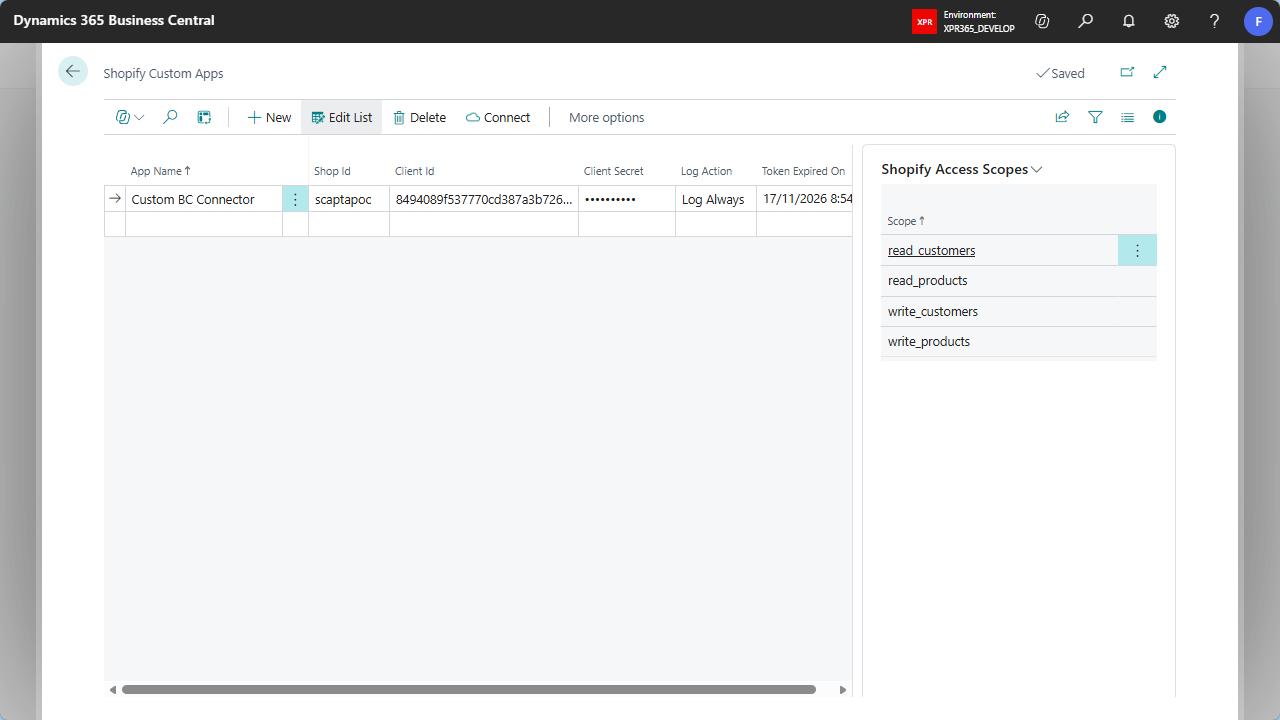
On the Shopify Custom Apps page, choose New and fill in the fields as described in the following table.
Field Description App Name Enter a name you recognize, for example the name the app has in the Shopify Dev Dashboard. Shop Id Enter the store ID from your Shopify admin address https://{store id}.myshopify.com. For example, forhttps://scaptapoc.myshopify.com, enter scaptapoc.Client Id Paste the client ID you copied from the app's settings in the Shopify Dev Dashboard. Client Secret Paste the client secret from the Shopify Dev Dashboard. The secret is stored encrypted and is shown as dots afterwards. When you enter the secret, Business Central connects to Shopify right away to get an access token. Log Action Choose how the requests this app sends to Shopify are logged. Turn on logging when you troubleshoot a connection, and turn it off again afterwards to keep the log small. Token Expired On Shows when the current access token expires. Business Central fills in this field each time it gets a new token. When the field is empty, the app is not connected yet. Check the Shopify Access Scopes FactBox. It shows the access scopes that Shopify granted to the selected app.
To connect an app again
Choose the Connect action to get a new access token for the selected app and to refresh its access scopes. Do this, for example:
- after you changed the scopes of the app in the Shopify Dev Dashboard,
- when the Token Expired On field is empty,
- when you want to check that the connection still works.
You don't have to renew tokens yourself during normal use. Business Central requests a new access token automatically when the current one has expired.
Use several custom apps
You can register more than one custom app for the same shop, for example when different XPR365 apps need different access scopes. When Business Central sends a request to Shopify, it uses the first app of the shop, sorted by App Name, that has all the access scopes the request needs.
Tip
If a request fails because of missing access scopes, add the scope to an app in the Shopify Dev Dashboard, release a new version of the app, and then choose Connect in Business Central.
Remove a custom app
When you delete a custom app on the Shopify Custom Apps page, its client secret, access token and access scopes are removed from Business Central as well. The app itself stays in Shopify; uninstall it there if you no longer need it.