Shopify Metafield Definitions
Synchronize Metafield Values
After you have created the metafield definitions, you send the Business Central values to Shopify. You can do this manually from the list of definitions, or with a report that you can schedule in the job queue.
How the synchronization works
For each owner type, the synchronization takes these steps:
- For each Shopify customer, product, product variant or company that the Shopify Connector knows, Business Central reads the source value of every definition.
- It converts each value to the value type of the definition, for example text, number, date or true/false.
- It compares each value with the value that was sent before. Unchanged values are skipped, unless you force the synchronization.
- It sends the changed values to Shopify.
- It deletes values in Shopify for which there is no longer a source value in Business Central.
Note
Only records that are already linked by the Shopify Connector are synchronized. For example, an item must first be synchronized as a Shopify product before its metafields can be sent.
To synchronize from the list of definitions
- Open the Metafield Definitions page of the owner type you want to synchronize, for example Product Metafield Definitions on the Shopify Shop Card.
- Choose Sync Metafields.
All values of all definitions for this owner type are sent to Shopify, also the ones that did not change.
To synchronize with the report
- Select Search ( Alt + Q )
 in the upper-right corner, enter XPR365 Shopify Metafields Synchronization, and then choose the related link.
Fill in the fields as described in the following table.
Field Description Owner Type Select the owner type whose metafields you want to synchronize: Customer, Product, Product Variant or Company. Force Sync Turn on to send all values to Shopify, also when they did not change in Business Central. Code Optionally, filter on the shops you want to synchronize. Without a filter, all enabled shops are synchronized. Choose OK.
To schedule the synchronization
To keep Shopify up to date automatically, schedule the XPR365 Shopify Metafields Synchronization report (report 72155675) in a job queue entry. Create one job queue entry per owner type, and use the Report Request Page action on the job queue entry to set the owner type. For more information, see Use Job Queues to Schedule Tasks.
Tip
Schedule the metafield synchronization after the product and customer synchronization of the Shopify Connector, so that new products and customers get their metafields in the same run.
View the metafields of a product
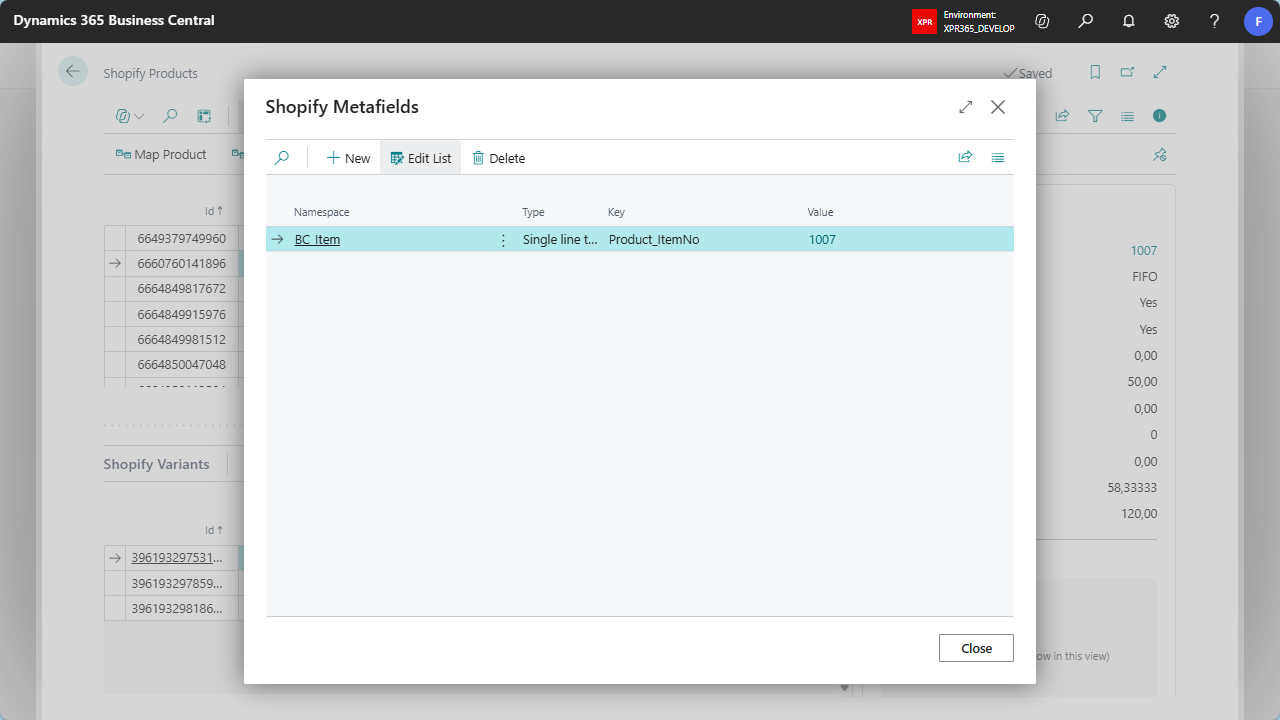
You can check the values that were sent from the Shopify Connector pages. For example, on the Shopify Products page, select a product and open its Metafields.
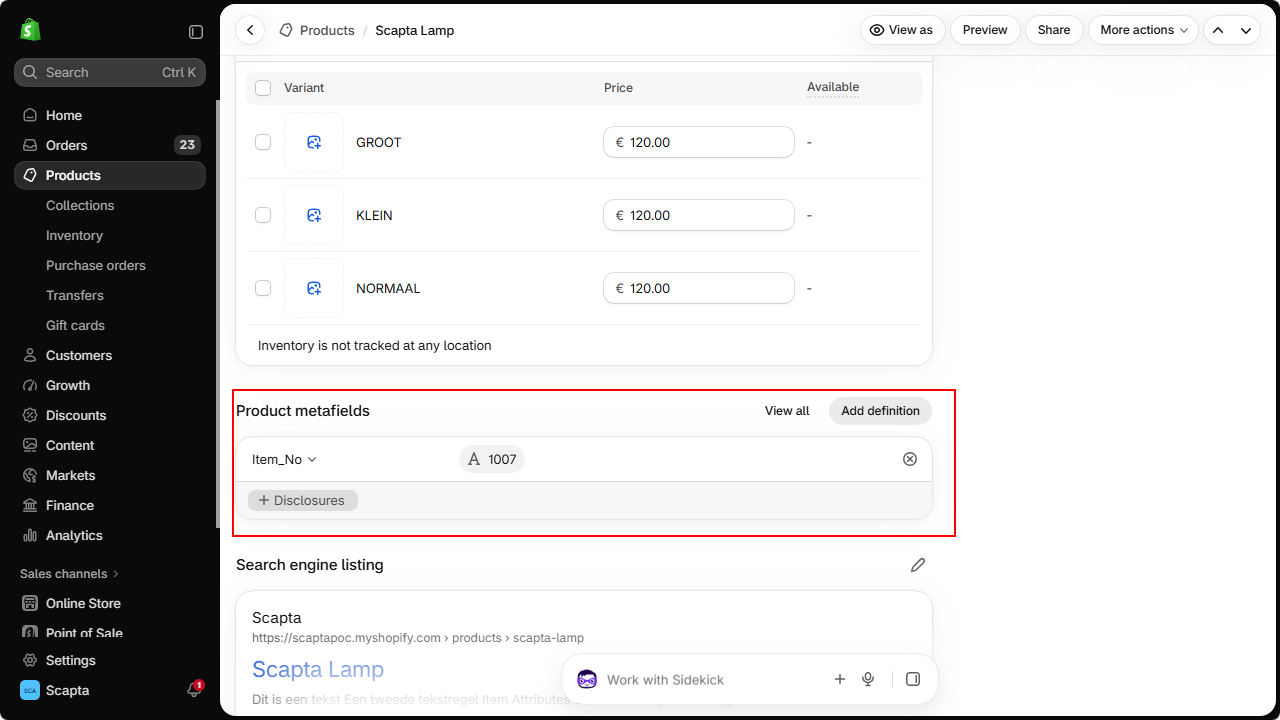
In the Shopify admin, the values are shown on the product, variant, customer or company page.