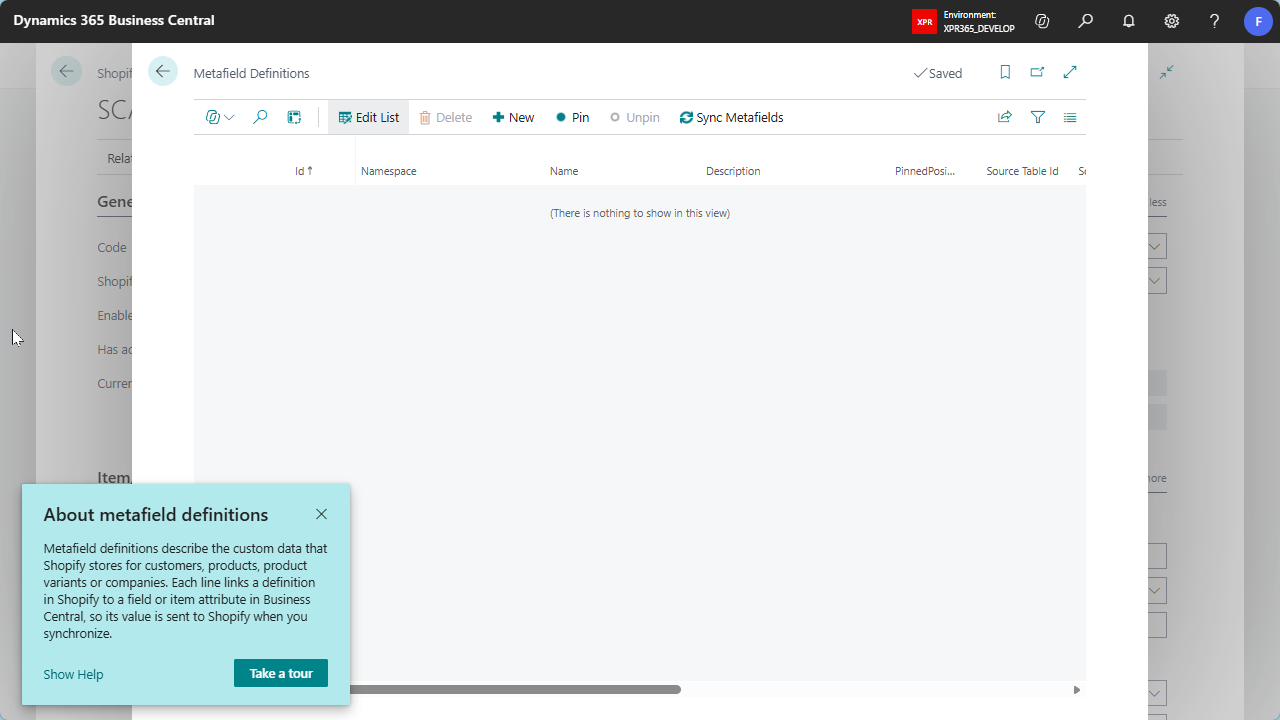
Shopify Metafield Definitions
Manage Metafield Definitions
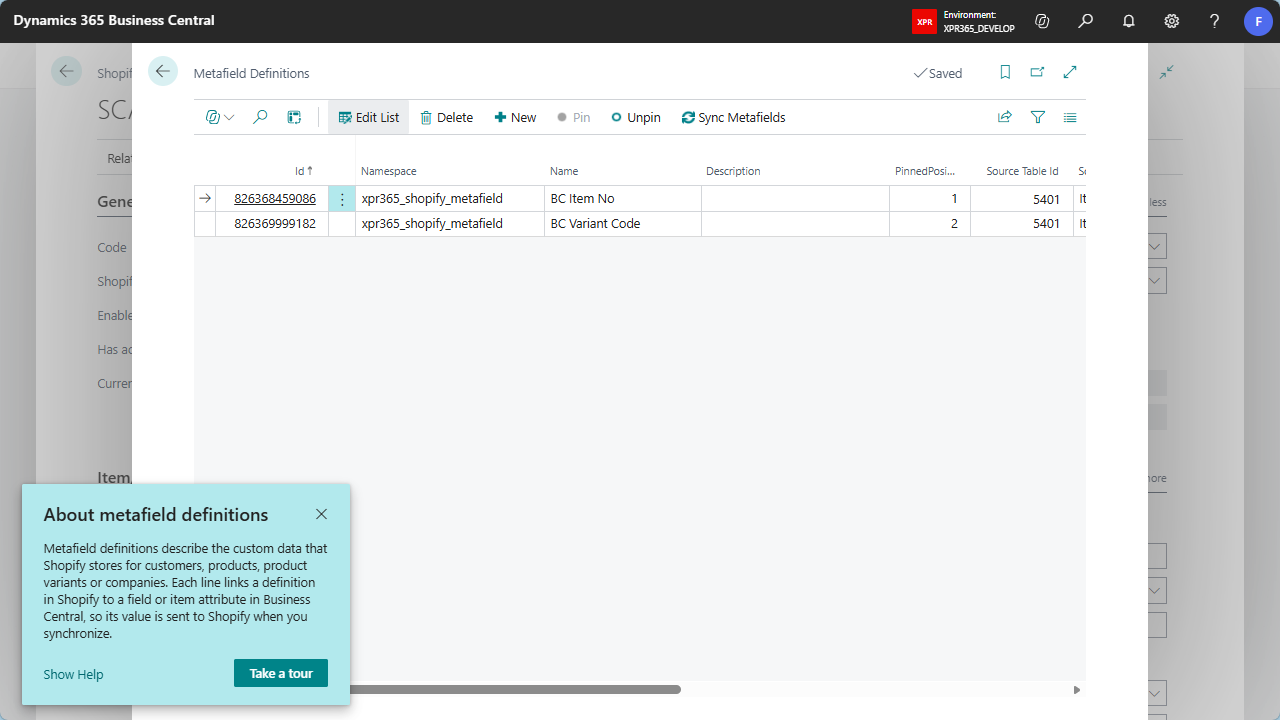
Metafield definitions are managed per shop and per owner type: Customer, Product, Product Variant or Company. Each definition links a metafield in Shopify to a field or item attribute in Business Central.
To open the metafield definitions
- Open the Shopify Shop Card of the shop.
- Choose Metafield Definitions, and then choose one of the following actions:
- Customer Metafield Definitions
- Product Metafield Definitions
- Product Variant Metafield Definitions
- Company Metafield Definitions
When the page opens, Business Central reads the definitions of that owner type from Shopify:
- Definitions that were created in the Shopify admin are added to the list. You can then choose the Business Central source of their value.
- Definitions that exist in Business Central but no longer in Shopify are created in Shopify again.
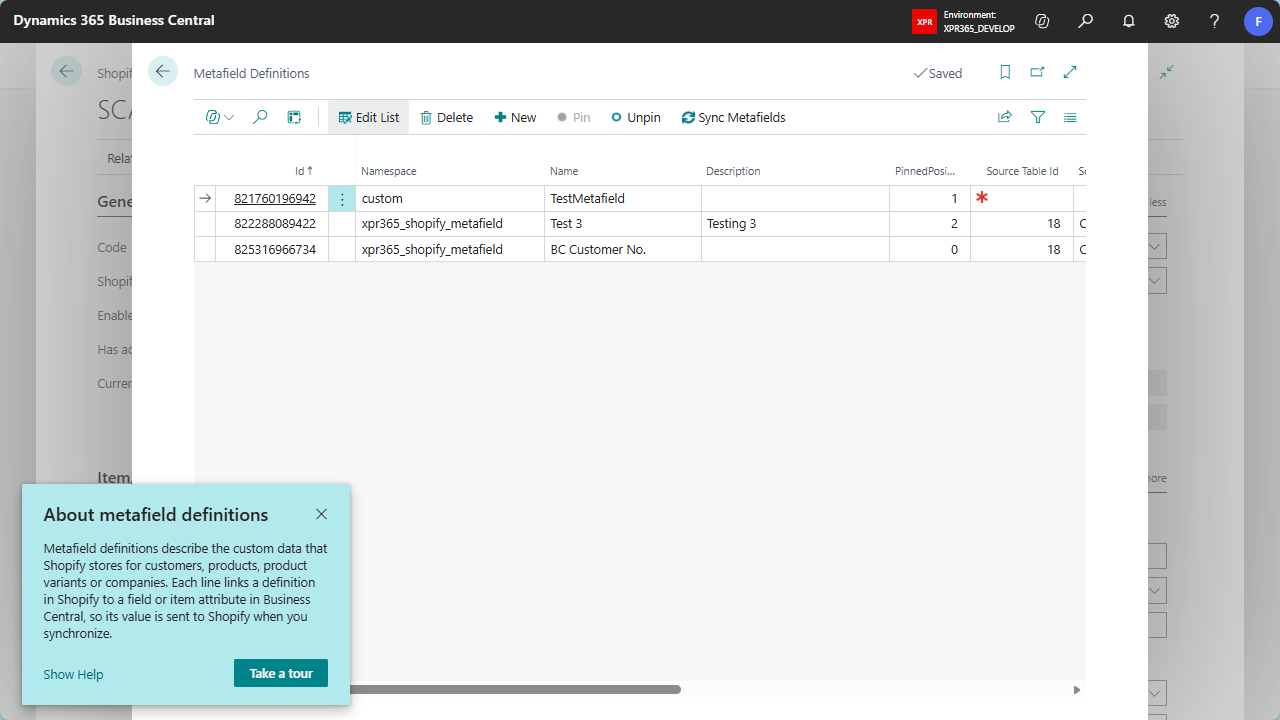
The following table describes the fields on the Metafield Definitions page.
| Field | Description |
|---|---|
| Id | The ID that Shopify gave the definition. You can use it to find the same definition in the Shopify admin. |
| Namespace | The namespace of the definition in Shopify. Together with the key, it identifies the metafield. |
| Name | The name shown in the Shopify admin. It must be unique per owner type and can't be changed after the definition is created. |
| Description | Describes what the metafield contains. Shopify shows the description in the admin. Changes are sent to Shopify when you close the page. |
| Pinned Position | The position of the definition in the Shopify admin. 0 means that the definition is not pinned. |
| Source Table Id / Source Table Name | The Business Central table that holds the value, for example Item, Item Variant, Customer or Item Attribute. Only tables that fit the owner type are available. |
| Source Field No / Source Field Caption | The field whose value is sent to Shopify. |
| Source Attribute Name | The item attribute whose value is sent to Shopify, when the source table is Item Attribute. |
| Value Type | Tells Shopify how to validate and show the value, for example text, number, date or true/false. It can't be changed after the definition is created. |
Tip
Use Personalize to show the hidden fields Key, Admin Access and Storefront Access. Storefront Access shows whether your online store theme can read the metafield value.
To create a metafield definition
- On the Metafield Definitions page, choose New.
In the Create Metafield Definition window, fill in the fields as described in the following table.
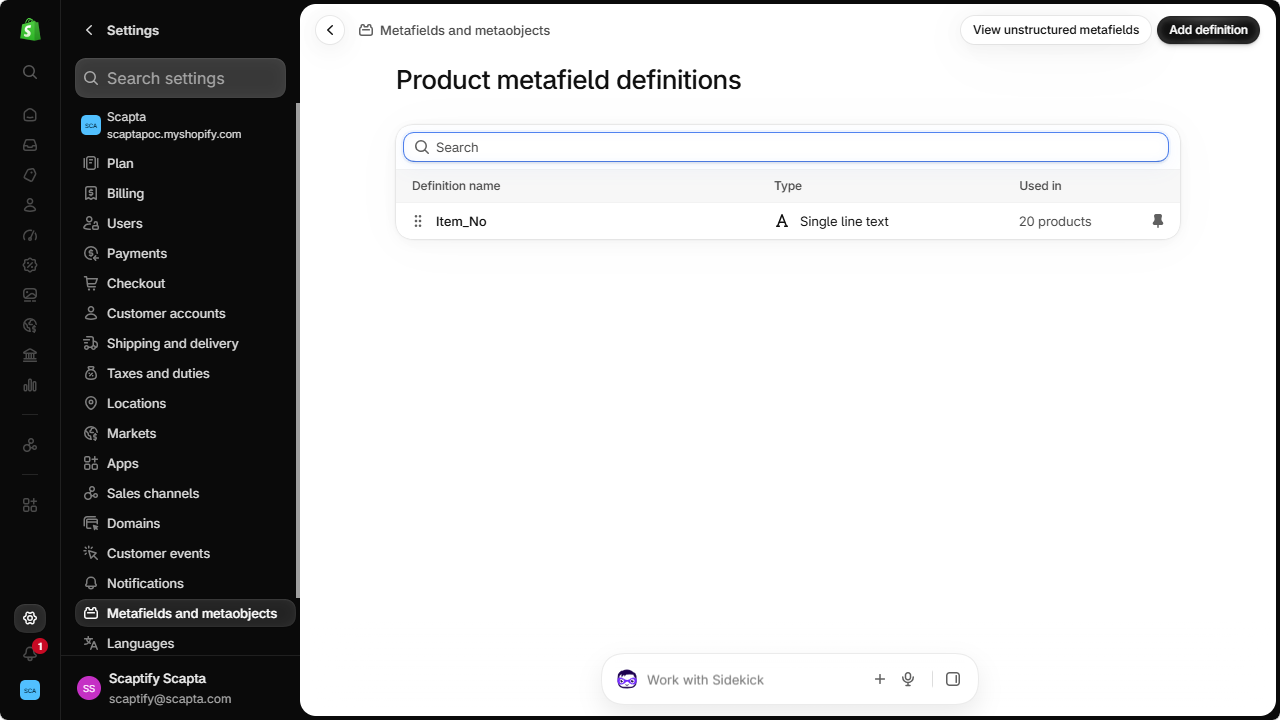
Field Description Namespace Enter the namespace of the metafield, for example BC_Item. Use the same namespace to group related metafields. Name Enter the name that is shown in the Shopify admin, for example Item_No. The key of the metafield is generated from the owner type and the name, for example Product_ItemNo. Description Describe what the metafield contains. Source Table Id Select the Business Central table that holds the value. This field is only shown when the owner type has more than one possible source table, for example for products. Source Field No Select the field whose value is sent to Shopify. When the source table is Item Attribute, select the item attribute instead. Value Type Select the type of the value in Shopify. See Supported value types. 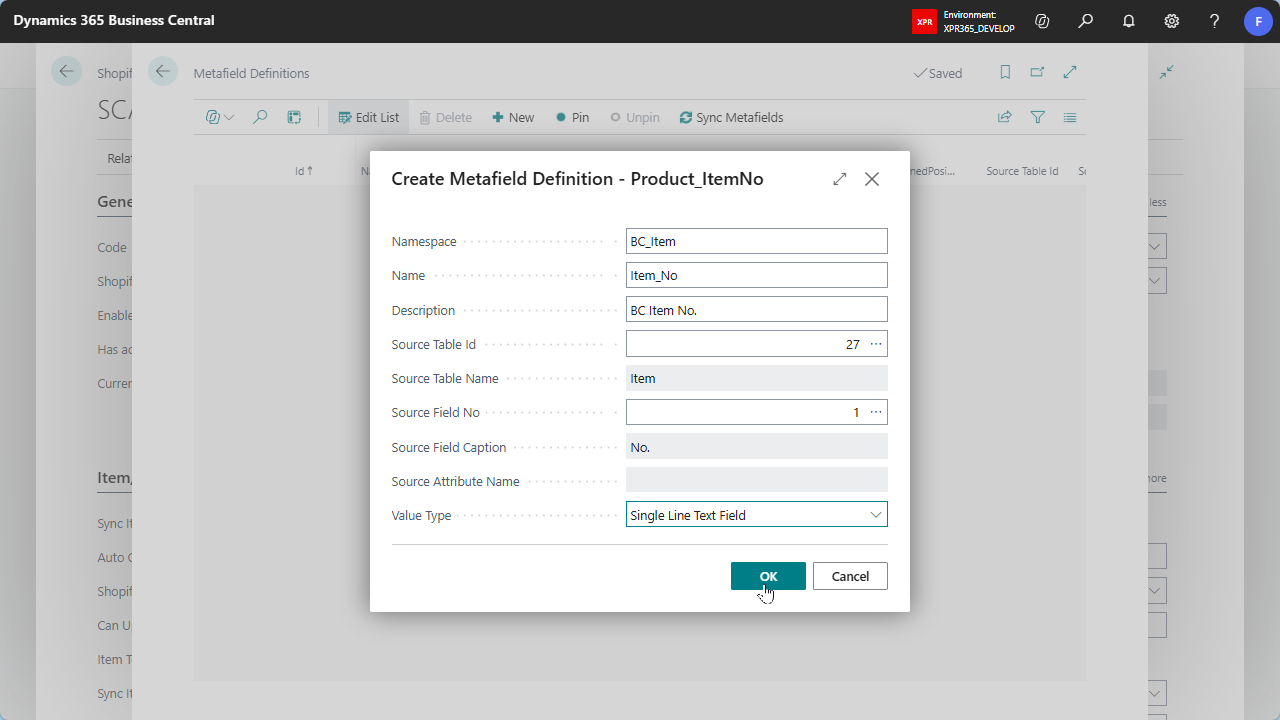
Choose OK. The definition is created in Shopify and added to the list.
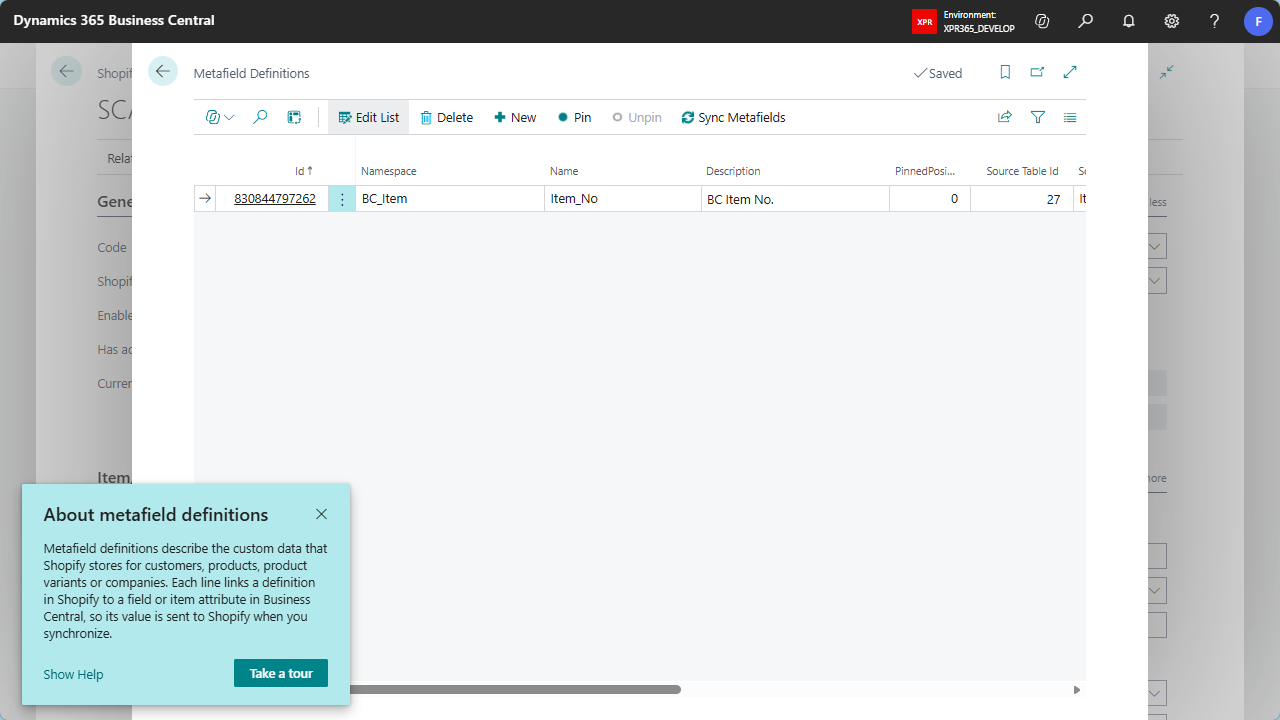
The new definition is now also available in the Shopify admin, under Settings > Metafields and metaobjects.
Note
When you link an item attribute of the type Option to a definition with the value type Boolean, Business Central asks which attribute value means true, for example Yes.
Supported value types
Business Central converts the source value to the value type of the definition. The following value types are supported:
| Value type | Example of a source value |
|---|---|
| Single Line Text Field | Item No., customer name |
| Multi Line Text Field | A longer description |
| Integer | A whole number |
| Decimal | Net weight, unit price |
| Date | A date field |
| Date Time | A date and time field |
| Boolean | A Yes/No field, or an option attribute value that means true |
The other value types in the list, such as Color, Money, Url or Weight, can be selected, but Business Central doesn't convert values to them yet.
To pin or unpin a definition
Pinned definitions are shown automatically on the customer, product, variant or company page in the Shopify admin.
- Select a definition and choose Pin to pin it. Only definitions that are not pinned yet can be pinned.
- Select a pinned definition and choose Unpin to remove the pin. The positions of the other pinned definitions move up.
To delete a definition
Select the definition and choose Delete.
Warning
When you delete a definition, it is also deleted in Shopify, together with all its metafield values.